Running Studies
End-to-end workflow for running an SDDP study with cobre run, interpreting output,
and inspecting results.
Preparing a Case Directory
A case directory is a folder containing all input data files required by Cobre. The minimum required structure is:
my_study/
  config.json
  penalties.json
  stages.json
  initial_conditions.json
  system/
    buses.json
    hydros.json
    thermals.json
    lines.json
All eight files are required. Before running, validate the input:
cobre validate /path/to/my_study
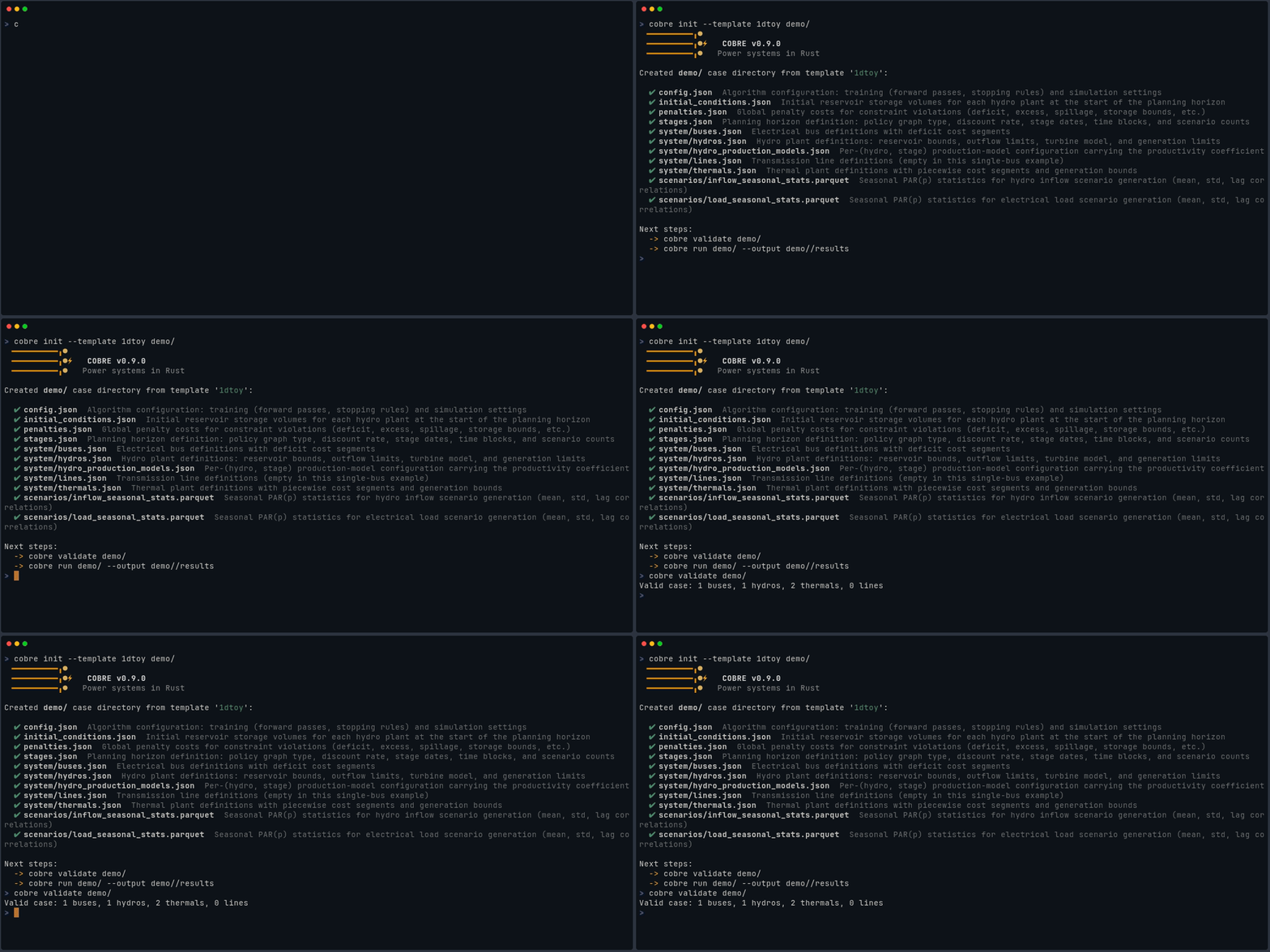
Successful validation prints entity counts and exits with code 0:
When validation detects errors — such as missing required fields or constraint violations — it reports them with severity labels and exits with code 1:

Fix any reported errors before proceeding. See Case Directory Format for the full schema.
Running cobre run
cobre run /path/to/my_study
By default, results are written to <CASE_DIR>/output/. To specify a different
location:
cobre run /path/to/my_study --output /path/to/results
Lifecycle Stages
- Load — reads input files, runs layered validation (exits code 1 on validation failure, 2 on I/O error)
- Train — builds the SDDP policy by iterating forward/backward passes; stops when stopping rules are met
- Simulate — (optional) evaluates the policy over independent scenarios; requires
simulation.enabled = true - Write — writes Hive-partitioned Parquet (tabular), JSON manifests/metadata, and FlatBuffers output
Terminal Output
Banner
When stderr is a terminal, a banner shows the version and solver backend.
Use --quiet to suppress the banner, progress bars, and post-run summary.
Errors are always written to stderr regardless of --quiet.
Progress Bars
During training, a progress bar shows current iteration count. In --quiet mode,
no progress bars are printed. Errors are always written to stderr.
Summary
After all stages complete, a run summary is printed to stderr with:
- Training: iteration count, convergence status, bounds, gap, cuts, solves, time
- Simulation (when enabled): scenarios requested, completed, failed
- Output directory: absolute path to results
Checking Results
Use cobre report to inspect the results:
cobre report /path/to/my_study/output
Reads manifest files and prints JSON to stdout (suitable for piping to jq):
cobre report /path/to/my_study/output | jq '.training.convergence.final_gap_percent'
Exits with code 0 on success or 2 if the results directory does not exist.
Common Workflows
Training Only
To run training without simulation, set simulation.enabled to false in
config.json:
{ "simulation": { "enabled": false } }
Simulation Against a Saved Policy
To evaluate a previously trained policy without re-training:
{
  "training": { "enabled": false },
  "policy": { "mode": "warm_start", "path": "./policy" }
}
Cobre loads the policy cuts, skips training entirely, and runs simulation. See Policy Management for details on warm-start and resume modes.
Multi-threading
Use --threads to accelerate training and simulation with intra-rank
parallelism:
cobre run /path/to/my_study --threads 4
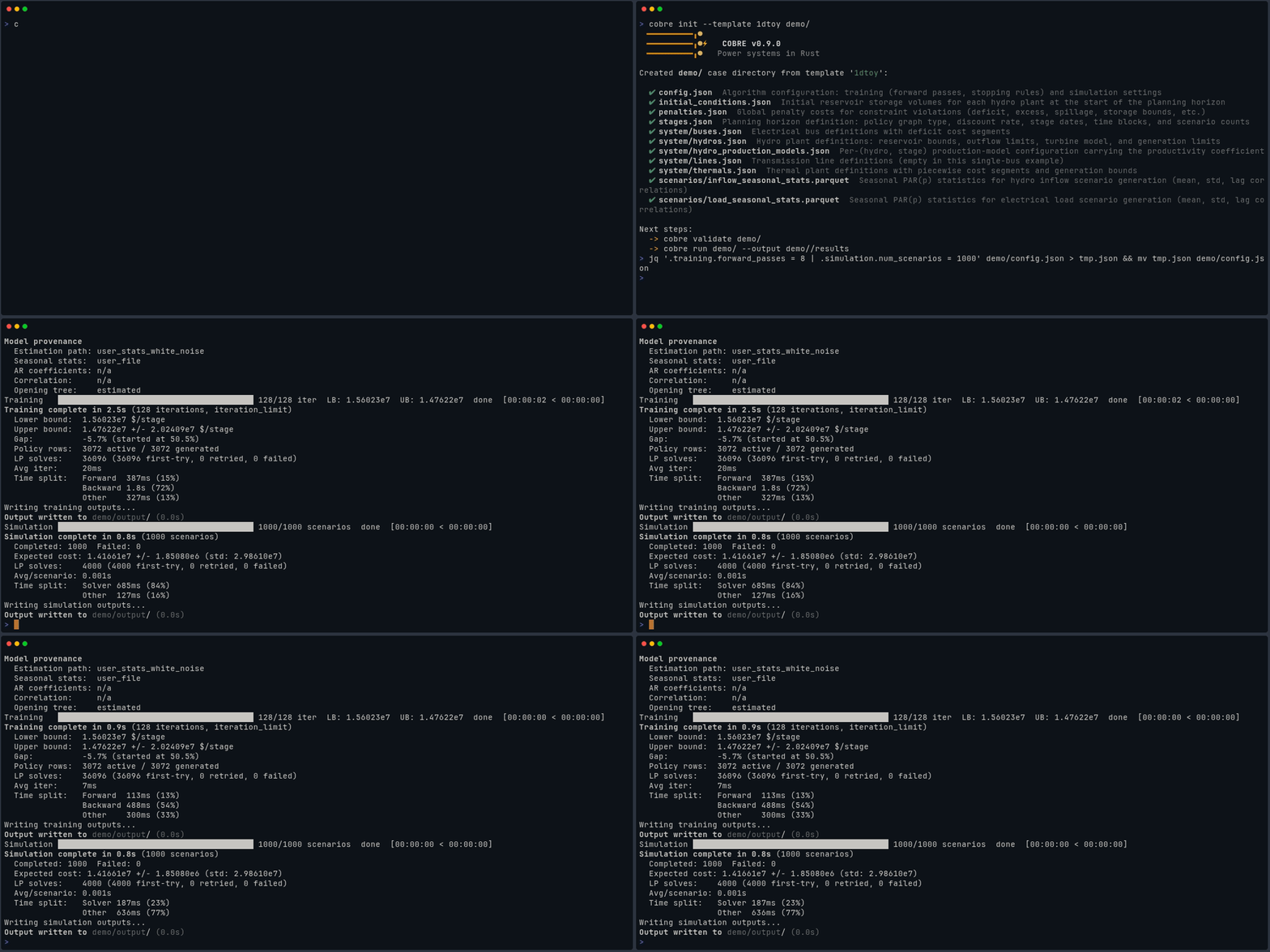
The thread pool is used for forward-pass batching and simulation scenario evaluation. Speedup depends on the number of forward passes and simulation scenarios configured.
Quiet Mode for Scripts
cobre run /path/to/my_study --quiet
exit_code=$?
if [ $exit_code -ne 0 ]; then
  echo "Study failed with exit code $exit_code" >&2
fi
Suppresses banner and progress output, suitable for batch scripts.
Checking Exit Codes
| Exit Code | Meaning | Action |
|---|---|---|
0 | Success | Results are available in the output directory |
1 | Validation error | Fix the input data and re-run cobre validate |
2 | I/O error | Check file paths and permissions |
3 | Solver error | Check constraint bounds in the case data |
4 | Internal error | Check environment; report at the issue tracker |
See CLI Reference for the full exit code table.
Exporting Stochastic Artifacts
Set exports.stochastic to true in config.json to write the stochastic
preprocessing artifacts to output/stochastic/ before training begins:
{
  "exports": {
    "stochastic": true
  }
}
What is exported
| File | Written when |
|---|---|
output/stochastic/inflow_seasonal_stats.parquet | Estimation was performed |
output/stochastic/inflow_ar_coefficients.parquet | Estimation was performed |
output/stochastic/correlation.json | Always |
output/stochastic/fitting_report.json | Estimation was performed |
output/stochastic/noise_openings.parquet | Always |
output/stochastic/load_seasonal_stats.parquet | Load buses exist |
“Estimation was performed” means the user did not supply the corresponding
scenario file; Cobre derived it from inflow_history.parquet.
Round-trip workflow
Because every exported file uses the exact same schema as the corresponding
input file, you can copy the exported artifacts back to scenarios/ and
re-run to reproduce the identical stochastic context without re-running
estimation:
# Step 1: initial run with stochastic export enabled in config.json
cobre run my_case

# Step 2: copy artifacts to scenarios/
cp -r my_case/output/stochastic/* my_case/scenarios/

# Step 3: re-run — estimation is skipped, opening tree is loaded directly
cobre run my_case
The re-run is faster (no Levinson-Durbin fitting or spectral decomposition) and produces bit-for-bit identical stochastic artifacts.
For the complete schema of each exported file, see Stochastic Artifacts in the Output Format Reference.